
After all these years with an iPhone, the one thing that still bugs me is AirDrop: moving files between Apple devices is silky smooth, but the moment the other side is a Windows PC or an Android phone, you are back in the Stone Age. Then I found LocalSend — free, open source and ad-free. This is what cross-platform file sharing should feel like.
1. Why I Recommend It: The Pain Point
Apple’s AirDrop is genuinely great, but it has one major flaw: it only works between Apple devices.
In reality, lots of people pair an iPhone with a Windows PC, or keep an Android phone as a backup. Sending a file in that setup is a real pain:
- WeChat "File Transfer": photos get compressed to mush, and large files are throttled
- USB cable: you have to carry it around and unplug it afterwards — a hassle even for a few photos
- Cloud drive: uploads and downloads take a detour through a server — slow and eats up storage
LocalSend nails it: a cross-platform "AirDrop": send anything between iPhone, Android, Windows, Mac and Linux, full quality, no sign-up, no servers involved. Use it once and you won’t go back.
2. What Is LocalSend? A Few Keywords
- Free, open source, ad-free: an open-source project with code on GitHub, no in-app purchases or ads — clean and simple
- Local network only: two devices on the same Wi-Fi are all it takes; files never pass through any server, no account needed, maximum privacy
- HTTPS-encrypted transfers: transfers are encrypted even on your LAN, so others on the same Wi-Fi can’t intercept your files
- No speed limits: speed depends only on your Wi-Fi, so 4K videos and big archives are no problem
- Every platform: iOS 12 and later, Android, Windows, macOS and Linux — one app for all your devices
3. Download & Install: Done in 30 Seconds
- iPhone: search for LocalSend in the App Store and install it (free)
- Computers and Android: go to the official site
localsend.organd download the right version — Windows / macOS / Linux / Android are all there
⚠️ The first time you open the iPhone app, iOS will ask for "Local Network" permission — be sure to tap Allow. Without it, the app can’t find other devices on your network and transfers will keep failing — the most common beginner mistake.
4. Hands-On: Sending Files from iPhone to a Computer
- Make sure both devices are on the same Wi-Fi (this is the key requirement)
- Open LocalSend on both and keep it in the foreground
- On the iPhone’s "Send" page, choose photos, videos or files
- Your computer will appear in the nearby devices list — tap it
- A prompt pops up on the computer; tap Accept and the transfer starts
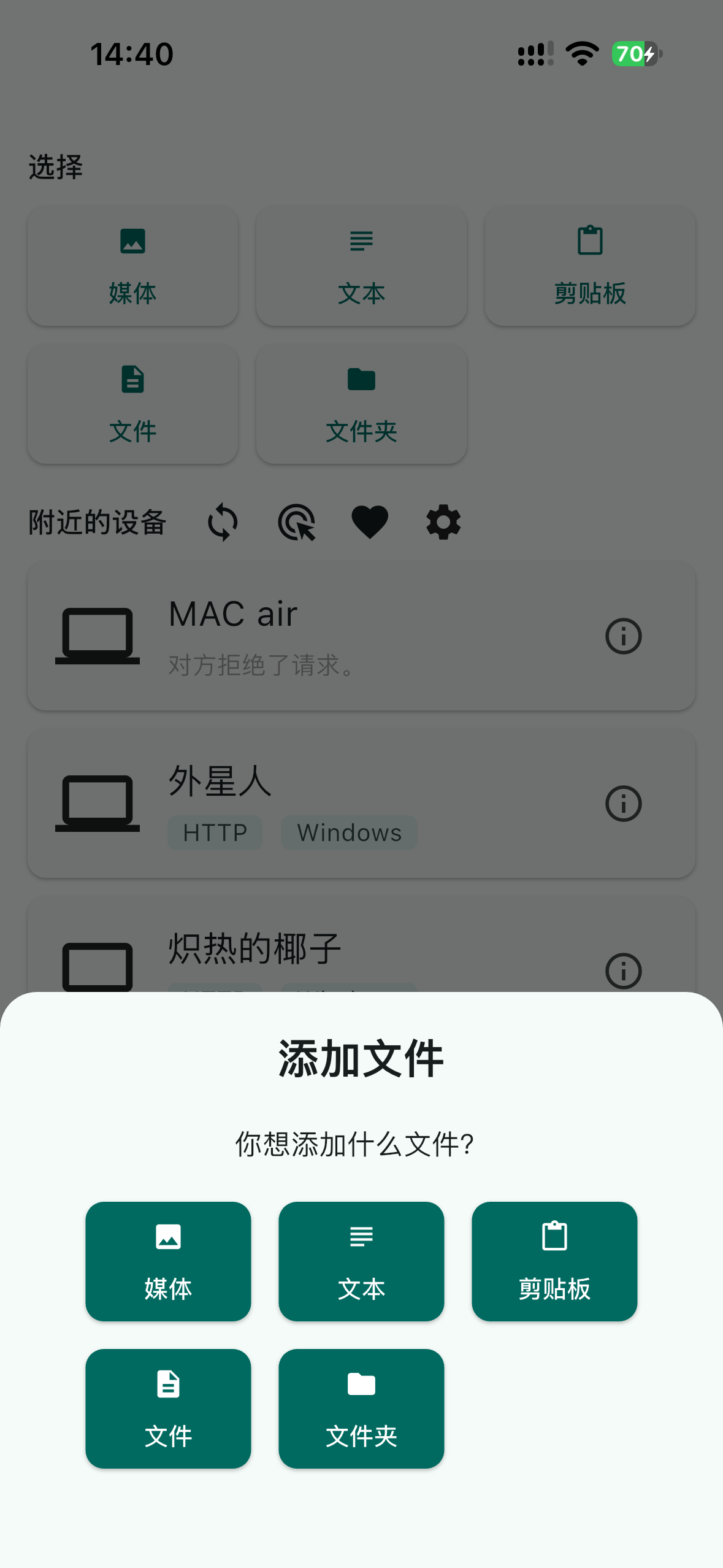
Figure 1: On the “Send” page, add what you want to send: media, text, clipboard, files or folders.
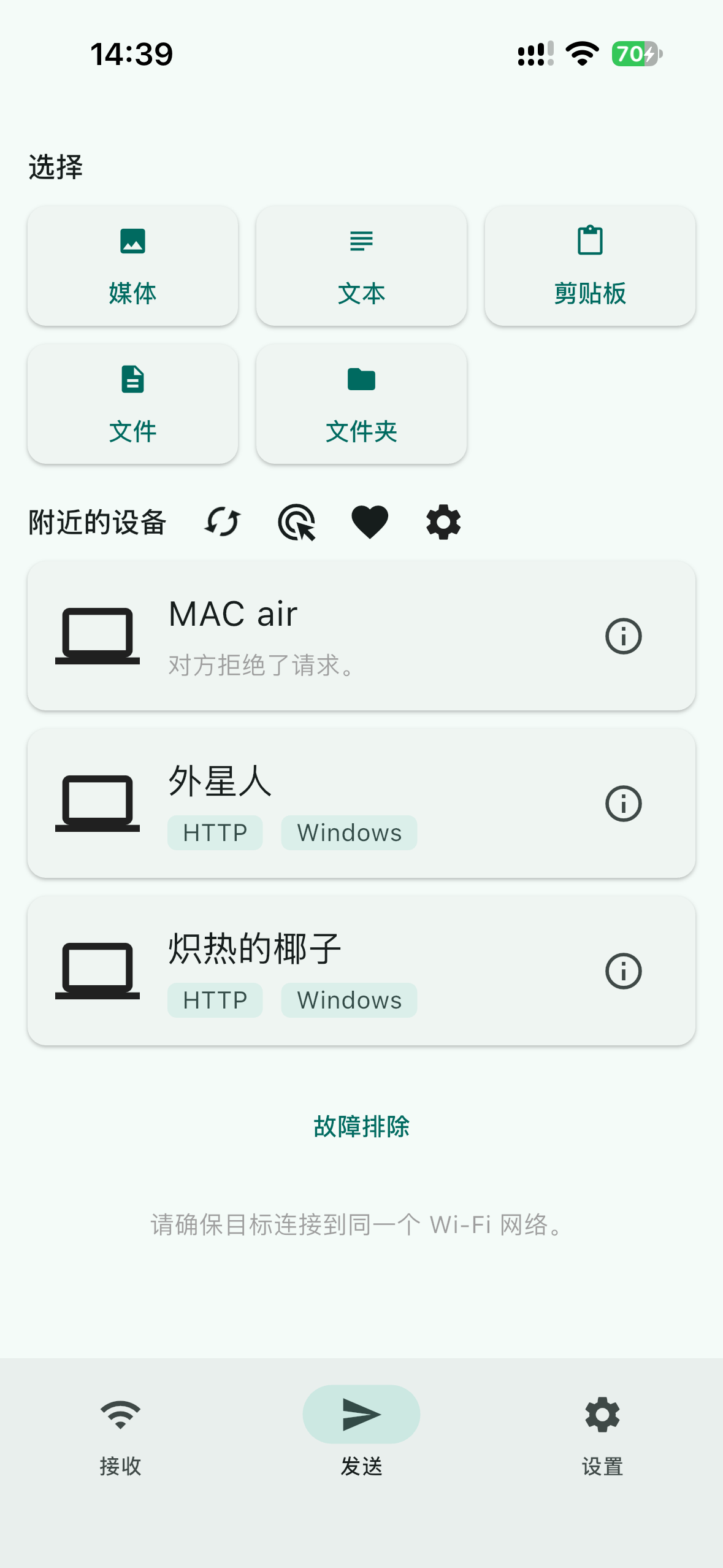
Figure 2: After choosing files, tap the computer you want to send to in the nearby devices list.
It feels almost exactly like AirDrop — photos are sent as originals, uncompressed. When sending large files, keep both screens awake; once the iPhone locks, iOS may suspend the app and interrupt the transfer.
5. Just as Smooth the Other Way: Computer to iPhone
Just reverse the flow:
- In LocalSend on the computer, pick files and send them to the iPhone in the list
- On the iPhone, tap Accept
- Files are saved automatically on the iPhone in "Files" app → LocalSend folder
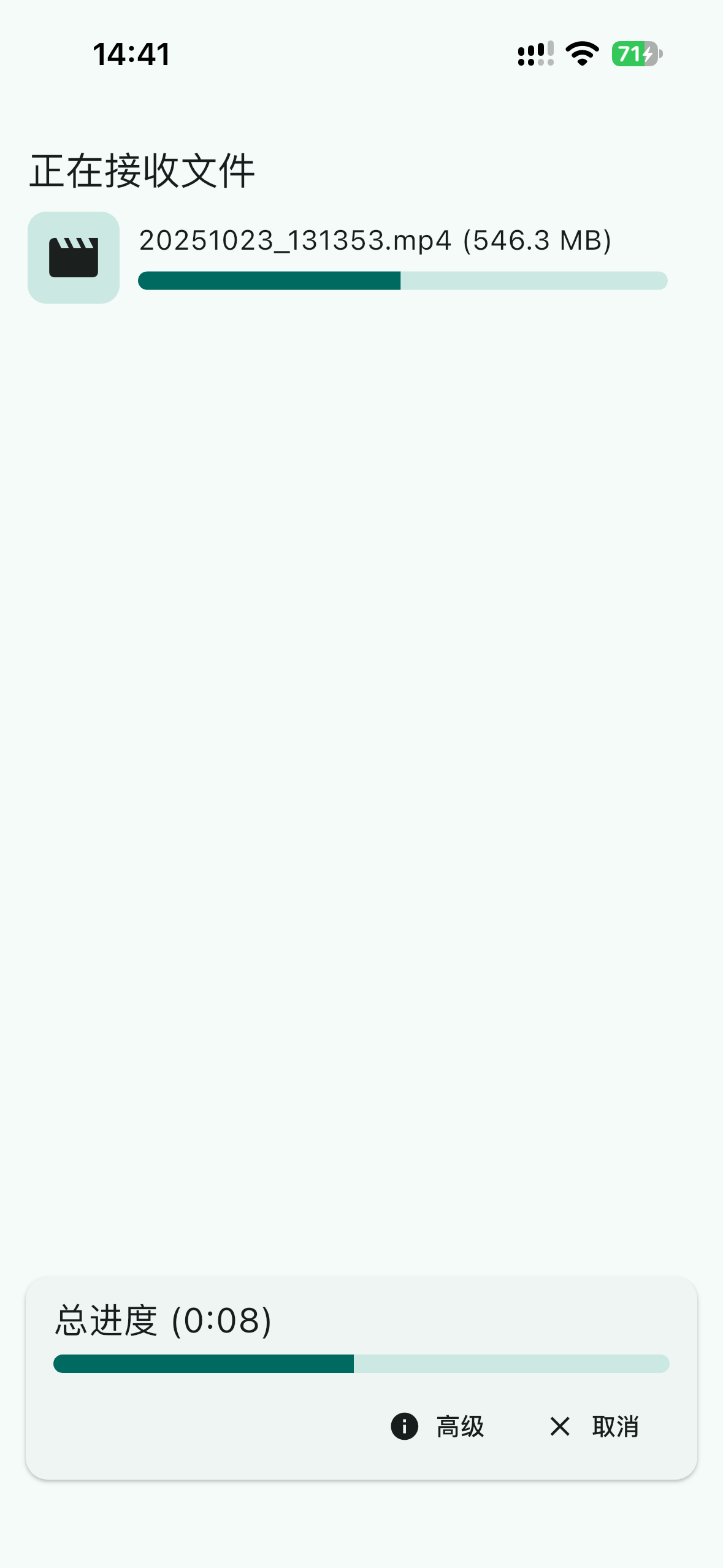
Figure 3: After tapping Accept, the iPhone shows “Receiving files” with the transfer progress.
To find what you received, just open the "Files" app and look in the LocalSend folder.
6. Small Features I Can’t Live Without
1. Send text directly: a cross-device clipboard
The Send page isn’t just for files — you can type a piece of text and send it. Copy a link or some code on your computer and have it on your iPhone in a second, ready to paste. It’s much faster than WeChat File Transfer and never gets swallowed. I use this every day.
2. Turn on "Quick Save" to skip confirmations
By default you have to tap Accept for every incoming transfer. Turn on Quick Save in Settings and received files are saved automatically. Highly recommended in trusted places like home or the office — the experience takes off.
3. Other side hasn’t installed the app? Share via link
If the other device doesn’t have LocalSend, use Share via Link mode: the app creates a download link on your local network, and the other person just opens it in a browser to download. No app needed on their side — perfect for sending a quick file to a colleague.
4. Can’t find a device? Enter the IP manually
When the other device doesn’t show up in the list, you can connect directly by entering its local IP address. You’ll find the computer’s IP in LocalSend’s settings (usually starting with 192.168.x.x).
7. FAQ: Device Not Found, Slow Transfers
Can’t find the other device? Check in this order
90% of problems come down to these:
- Make sure you’re on the same Wi-Fi: one device on the 5 GHz band and the other on 2.4 GHz still counts as the "same network", but one on mobile data and one on Wi-Fi definitely won’t work
- Router AP isolation: some routers (especially office and campus networks) have "AP isolation" turned on, so devices can’t see each other. On a home router you can usually turn it off under "Wireless settings" in the admin panel
- iPhone Local Network permission: go to iPhone Settings → LocalSend and make sure "Local Network" is switched on
- Windows network type: set Windows Wi-Fi to "Private network"; if it’s set to "Public", the firewall blocks device discovery. Change it under Settings → Network → Wi-Fi properties
Slow transfers?
- Switch to 5GHz Wi-Fi: the 2.4 GHz band is crowded and slow, while on 5 GHz LocalSend can hit tens of MB/s
- Move both devices closer to the router — too many walls noticeably cut speed
- Don’t let the iPhone lock while sending large files
8. Summary: How It Compares to Other Methods
Who it’s for: iPhone + Windows PC users, people carrying both iPhone and Android, and anyone who often moves photos and videos between phone and computer. Simply put, if not all your devices are Apple, this is a must-have file transfer tool.
| Method | Pros | Cons |
|---|---|---|
| AirDrop | Fastest and easiest within the Apple ecosystem | Apple devices only |
| LocalSend | Cross-platform, free, full quality, serverless, ad-free | Needs the same Wi-Fi; the other side should ideally install the app |
| WeChat file sending | No new app needed | Compressed quality, throttled large files, size limits |
| USB cable | Reliable | Need to carry a cable — a hassle |
My verdict is simple: LocalSend is currently the cross-platform file transfer option with no weak spots. Being free and open source means it won’t pull a "free now, paid later" move like some tools, and being serverless means your files never leave your own local network.
Download links: on iPhone, search for LocalSend in the App Store; for other platforms, go to the official site localsend.org to download. Give it a try — you’ll thank me later.