1. What Is Nagram?
Nagram is a third-party client built on the Telegram iOS client. You sign in with your Telegram account, and it is aimed mainly at users who want to tweak the interface and how messages are handled.
To be clear, Nagram is not an official Telegram app, and it is not developed or endorsed by Telegram Messenger Inc. Before using it, it’s worth understanding how third-party clients differ from the official one, and getting the app through trusted channels.
iOS vs. Android
Nagram has separate iOS and Android projects, maintained independently, so features and settings are not necessarily the same. This article covers the iOS version only and does not assume Android features apply to iOS.
| Item | iOS | Android |
|---|---|---|
| Repository | NextAlone/Nagram-iOS | NextAlone/Nagram |
| How regular users get it | App Store page | See the project’s official release channels |
| Features | Whatever the current iOS version actually offers | Whatever the current Android version actually offers |
Both can use the same Telegram account. Regular cloud chats sync through Telegram’s account system; Secret Chats work differently from cloud chats and should not be assumed to sync across all devices.
How is Nagram different from the official Telegram client?
Nagram keeps Telegram’s core chat experience while adding extra interface and message-handling options, such as customizing the bottom navigation, message menu, timestamp display, sticker size and chat list gestures. Some users also use its message filtering and translation features.
Whether a feature appears in a given version, and where its setting lives, may vary by version or release channel. Go by the settings in the version you have installed.
Download & Price
Check the App Store page for your region to see whether it’s available and what price is shown. Store pricing and availability may differ by region and change over time; this article doesn’t treat any region’s price as permanent.
2. Who Might Want to Try Nagram?
If you read a lot of Telegram channels and want fewer repetitive or uninteresting messages, or you’d like to tweak the client’s interface and message actions, Nagram may be worth a look.
If you mostly chat day to day and value official support and a consistent experience, the official Telegram client may suit you better. Whether to switch clients is up to your own needs.
Features covered in this article
- Ad and message filtering: message settings include an option to hide sponsored messages; for promotional posts published by channels themselves, you can try handling them with regex rules. The two target different content, and neither guarantees every ad is filtered.
- Message translation: translate messages right inside the client. Available entry points, supported languages and services depend on the current version.
- Interface and controls: e.g. adjusting the bottom bar layout, how folder tabs are shown, and gestures for the chat list and messages.
- Remove content protection: currently offered as an option in the TestFlight beta. This is a beta feature; whether it reaches the App Store release and how it behaves depend on the actual release notes. Please respect original creators and group rules; restrictions such as on paid content may still apply.
3. Handling Two Kinds of Promotional Messages Differently
Promotional content in Telegram roughly comes in two kinds: sponsored messages shown by the platform, and text ads or traffic-driving posts published by channel or group users. Nagram’s settings offer a switch to hide sponsored messages and a separate regex message filter, and they suit different scenarios.
Hide sponsored messages
In “Messages” settings you’ll find the “Hide sponsored messages” option. The screenshot below shows it switched on in my current version. It targets sponsored messages the client recognizes; it doesn’t mean promotional posts by channel owners, external link bait or other ordinary messages will disappear too.
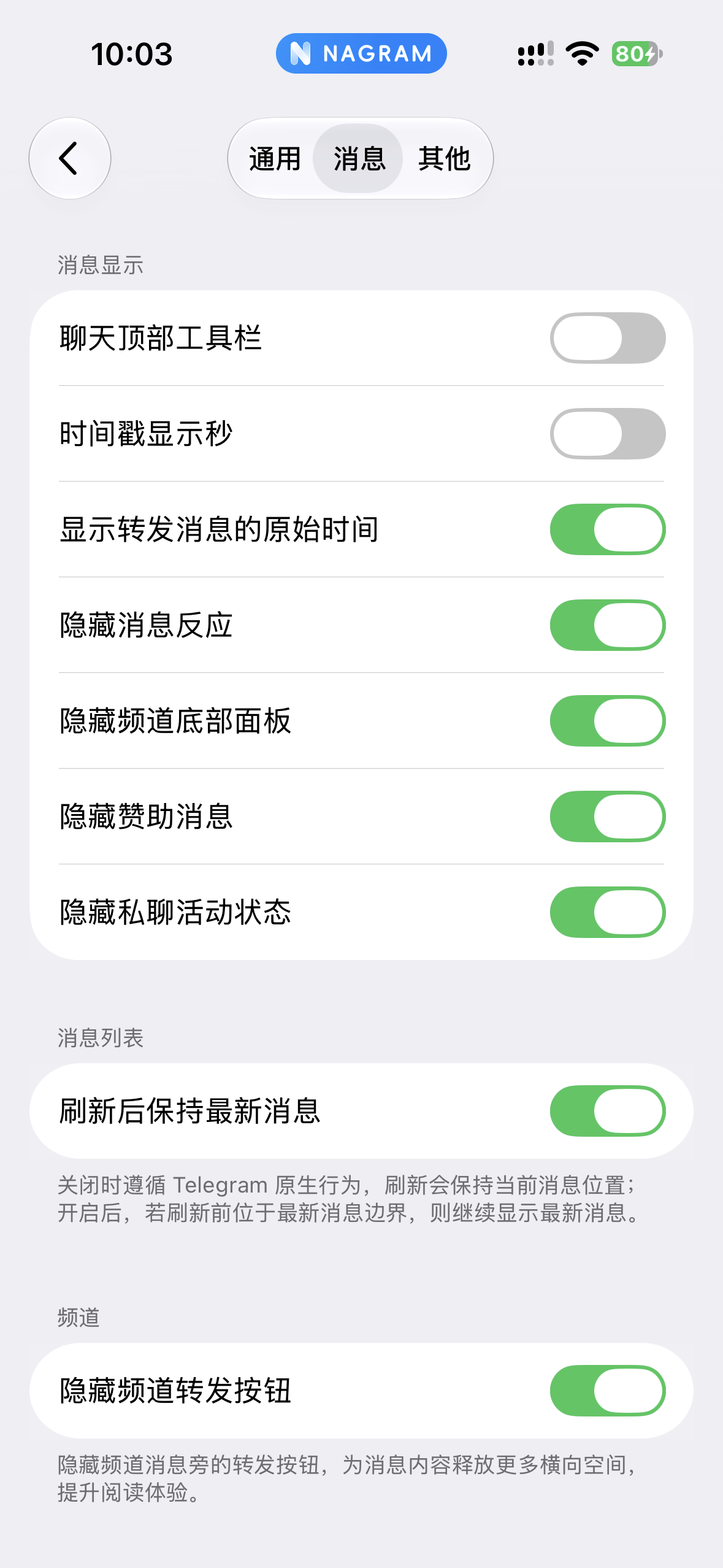
Figure 1: The “Hide sponsored messages” switch in message settings. Actual results depend on the current version and message type.
Filter channel ads with regex
I currently use regular-expression filter rules in Nagram for iOS to deal with some channel ads. It works well for text with fairly consistent patterns, but not for every type of ad, and it can’t guarantee channels will be completely ad-free.
In the “Messages” tab, turn on “Enable regex filter” and go to “Regex message filter” to manage rules. The screenshot also has “Filter messages you send” turned on; if you don’t want rules to apply to your own messages, you can turn it off.
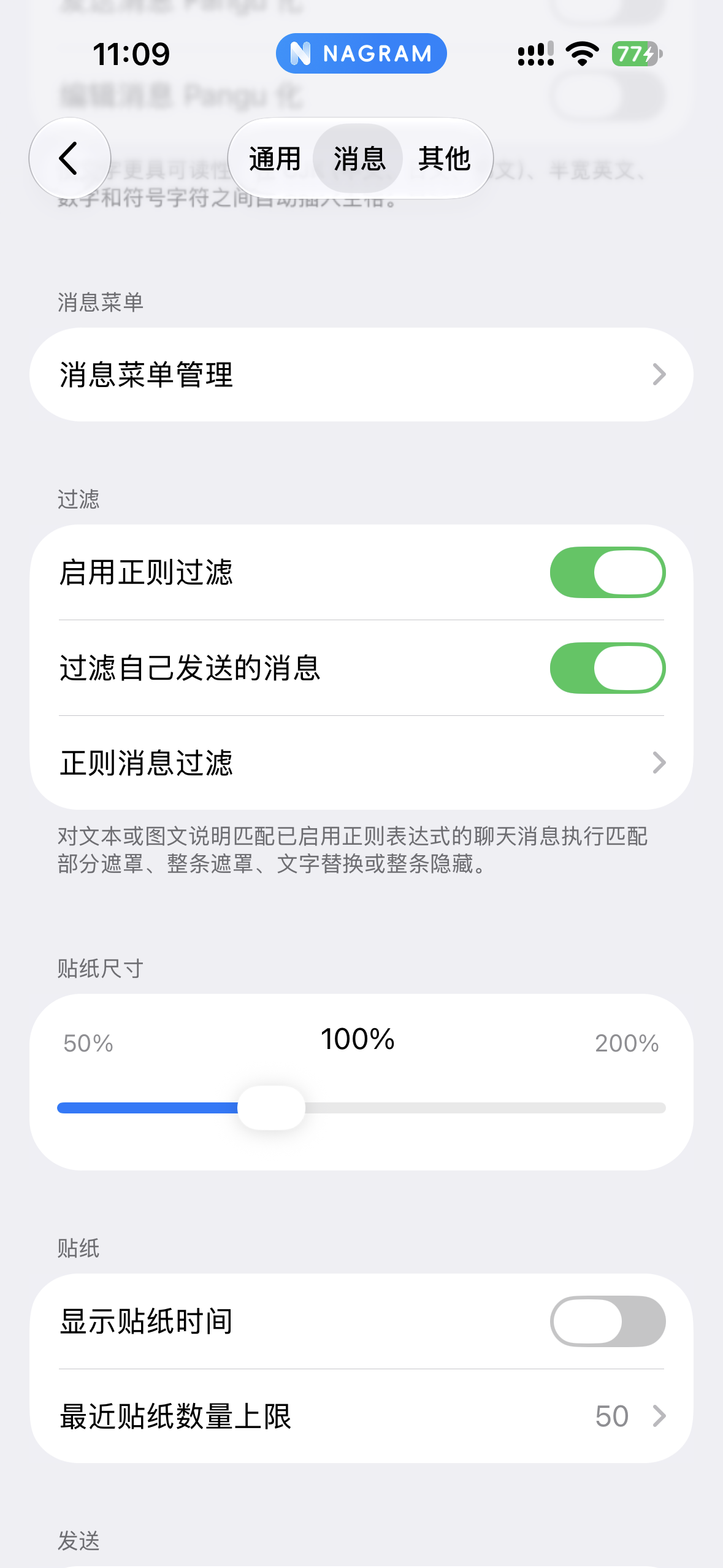
Figure 2: The master regex filter switch, filtering your own messages, and the rules entry. Options may change between versions.
In the rule list, you can choose partial masking, full masking, text replacement or hiding the whole message for matches. What gets hidden depends on the expression; rules that are too broad may catch normal messages.
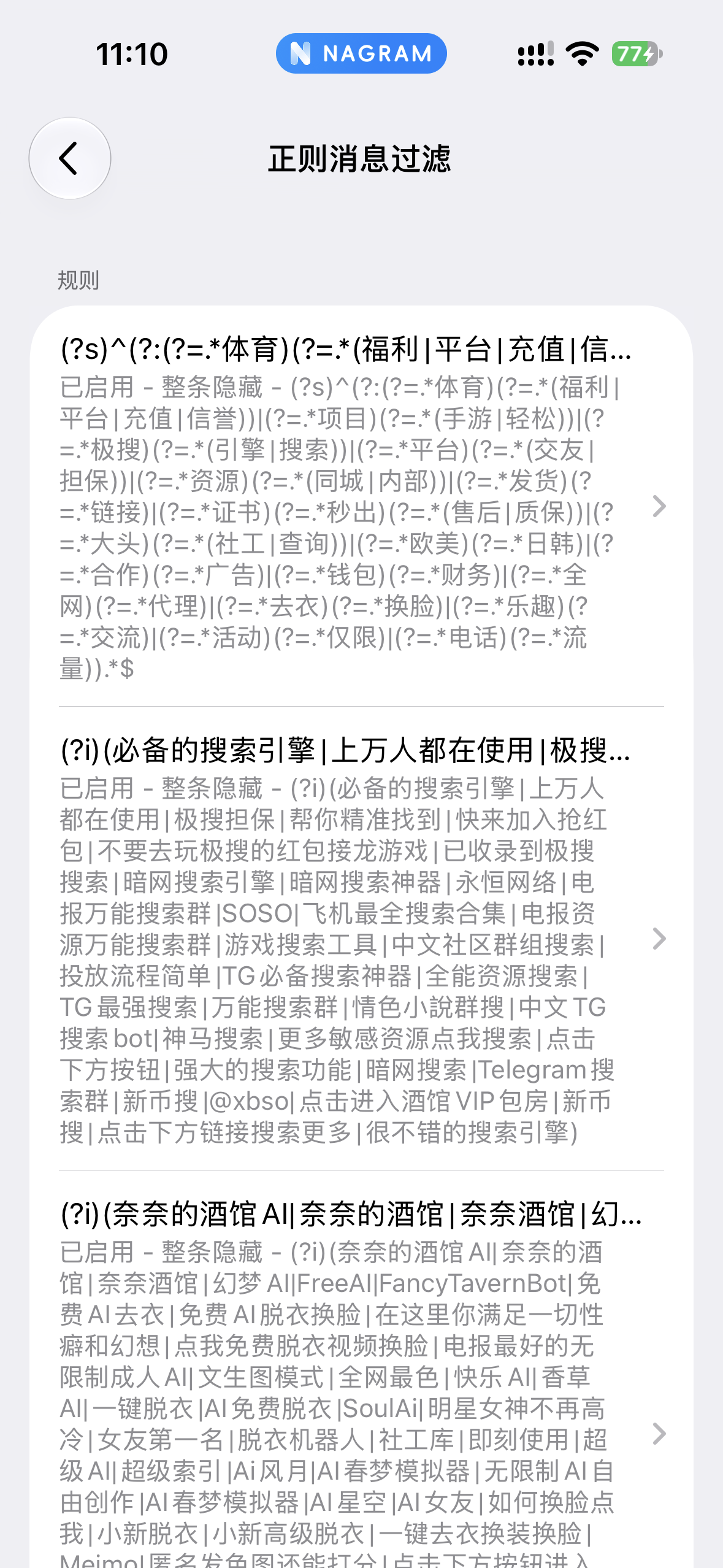
Figure 3: Some of the rules I currently have enabled. The list shows a personal setup, not an official Nagram rule pack.
There is also a curated message filter rule index online that you can use as a starting point for finding rules. It is an external compilation, not an official Nagram rule pack; entries and maintenance status are up to the original site. Before adding rules, check the expression, what happens on a match and the update date, enable a few first and watch for false positives. This article makes no guarantee about the coverage of third-party rules.
Things to watch when using filter rules
- Start with a few well-targeted rules and confirm the rule format and what happens on a match.
- Check filter results regularly to make sure normal messages aren’t being hidden.
- When something slips through, look for stable patterns before deciding whether to add a rule.
- Before sharing or importing rules, read the source notes and update dates; external rules may stop working or may not fit the channels you follow.
4. Tailor the Interface and Controls to Your Habits
Beyond message handling, Nagram also offers some layout and control preferences. Here are two directions that are easy to notice in daily use, rather than a list of every setting.
Adjust the bottom bar and folder tabs
In “General” settings you’ll find “Bottom bar layout”, and you can also adjust which folder opens at launch and how folder tabs are displayed. For a cleaner look, try showing only folder names or tightening the folder tabs; available layouts depend on your current version.
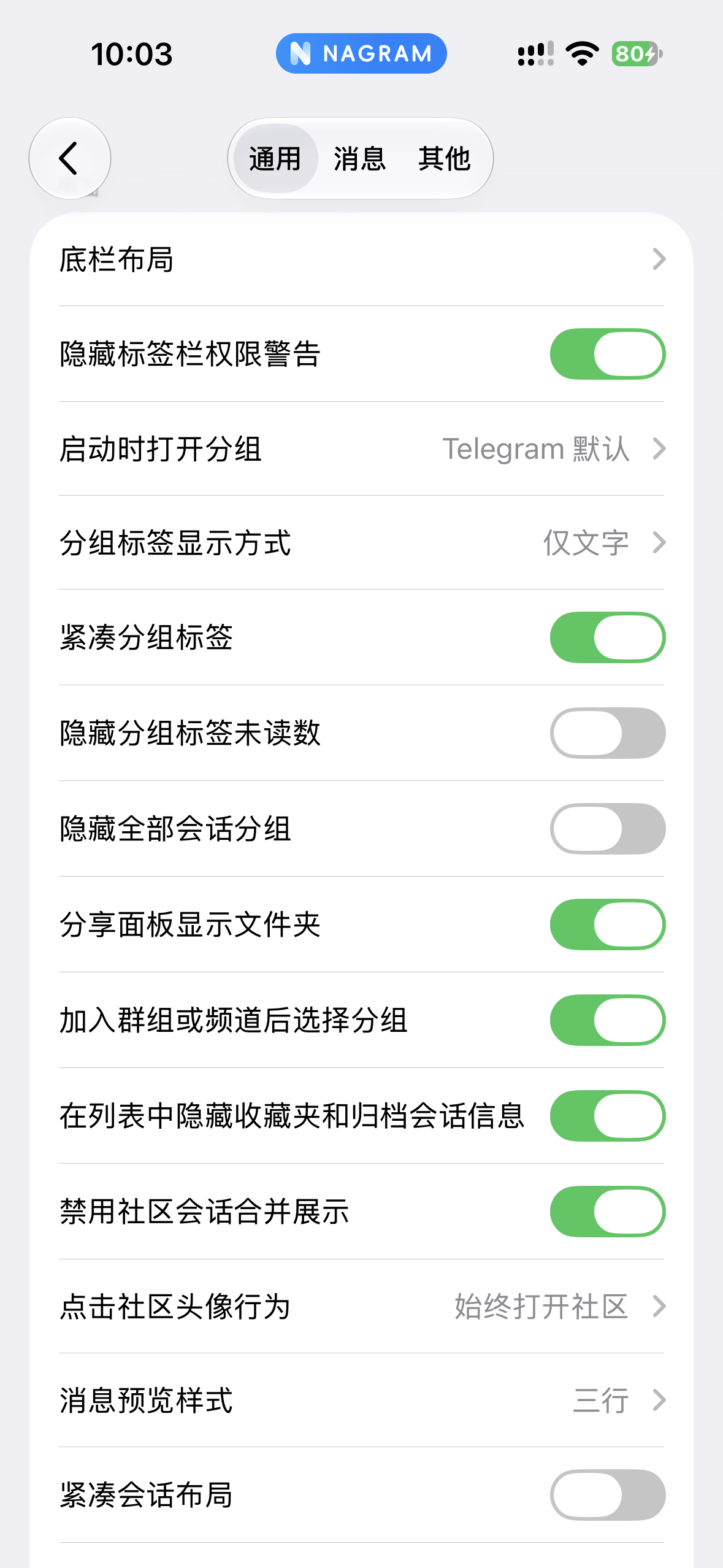
Figure 4: Bottom bar, launch folder and folder tab options in General settings.
Adjust chat list and message gestures
“Gestures” settings include options such as quickly returning to recent chats, tapping a message row to open its menu, double-tap message actions and chat list swipes. Keep the defaults at first, then tweak them one by one to match how you use your phone; changing too many gestures at once just makes the new controls harder to remember.
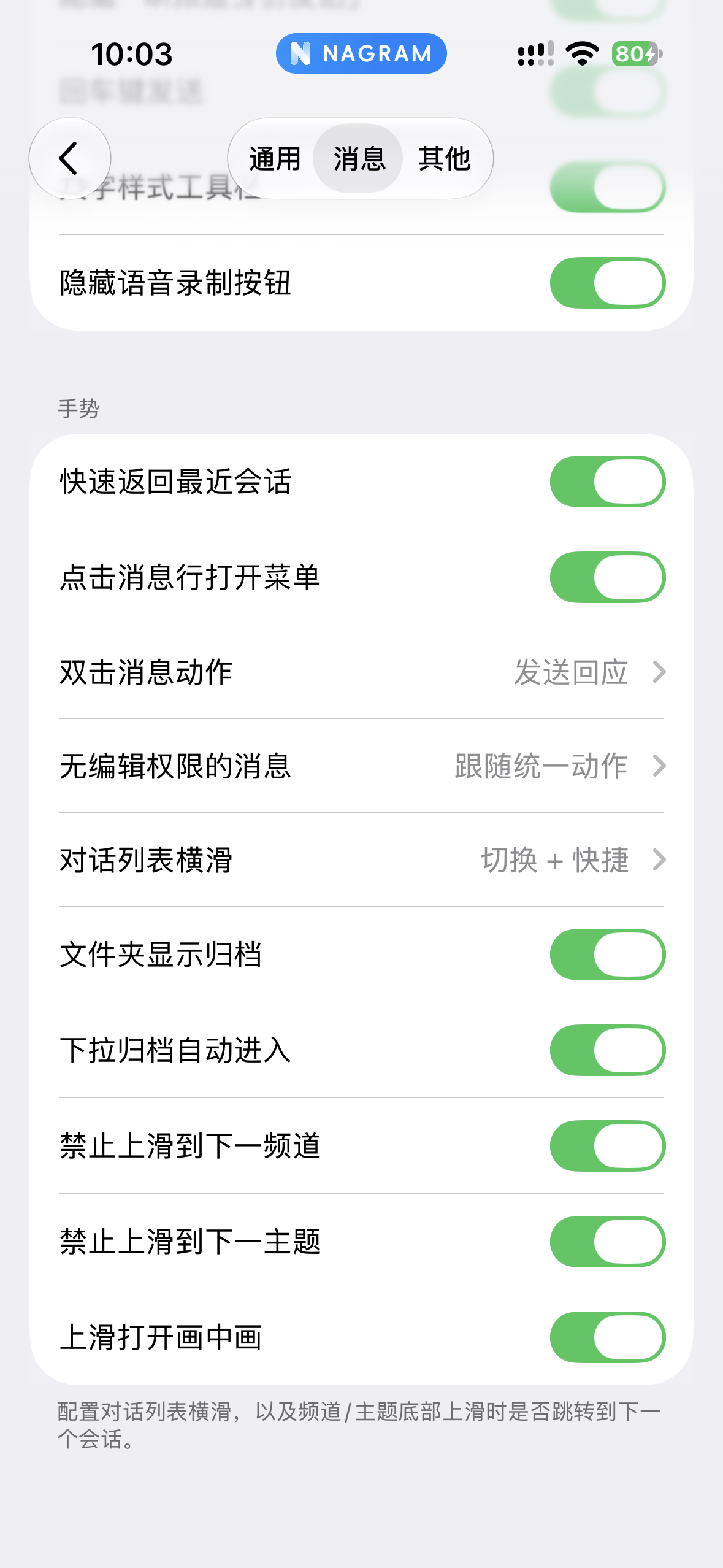
Figure 5: Example gesture settings. Available options and actions may change between versions.
5. In-App Translation
Nagram for iOS offers message translation features. Compared with copying a message and switching to another app, translating inside the client saves steps.
Menu layouts may differ between versions. Look for the translate option in the message action menu or related settings; if you don’t see it, check your app version and settings first. Translations are good for getting the gist; for important information, check against the original.
6. Release Version vs. TestFlight Beta
The “Remove content protection” feature mentioned here comes from the latest TestFlight beta I know of. Beta features may be adjusted, removed or changed before official release, so it can’t be described as something every App Store user can use today.
You can apply to try the Nagram iOS beta via the TestFlight invite link . First install Apple TestFlight on your iPhone or iPad, then open the invite link on the device and accept and install as prompted. The invite page describes the beta as a build for testing Nagram-style enhancements early, covering chat interactions, media and message handling, interface customization, notifications and account options; actual features depend on the current test build.
Betas may include features not yet in the App Store release, and may also see changes, rollbacks or stability issues. Eligibility, available builds and features all change; read the release notes in TestFlight before installing or updating.
7. Open Source, Privacy & Usage Tips
The Nagram-iOS project publishes its source code on GitHub. Open source helps the public see how the project works, but it doesn’t mean every store release has been audited by an independent body, nor can you conclude it is “absolutely safe” just because it is open source. Apps on the App Store are built and submitted by the developer, so you still need to decide whether you trust the developer and the release channel.
Consider the following when using it:
- Get the app from the App Store or official channels the project clearly announces, and avoid modified versions of unknown origin.
- Enable two-step verification for your Telegram account and keep your password and login codes safe.
- Decide whether to use a third-party client based on your own security needs; for especially sensitive conversations, learn about and use features like Telegram Secret Chats.
- Before installing a TestFlight build, accept that it may change or have problems; don’t treat beta features as a long-term guarantee.
Summary
Nagram for iOS offers options to hide sponsored messages, filter channel ads with regex, and customize the bottom bar and gestures. The sponsored-message switch and regex rules deal with different kinds of content, and actual results depend on the version and rule scope. Start with a few settings and watch for false positives. Removing content protection in TestFlight is still a beta feature.
The regex filtering and translation experiences described here are based on my own use, and the screenshots show the regex filter switch and an example of my current rule list. Feature and price information may change with versions and App Store regions; go by the in-app interface and store page.